2024-11-03
【WordPress】プラグインなしで目次を自動生成・設置Topics
スニペット集本文に目次を設置してくれるプラグインはたくさんありますが、今回はプラグインなしでの自動生成・自動設置をしてみます。
やりたいこと
- 本文中の「H2見出し」を目次に含める
- 本文中に「H2見出し」が2つ以上の場合に目次を表示する
- 記事ごとに目次表示・非表示の設定ができる
- 本文中に最初に出てくる「H2見出し」のすぐ上に目次を設置する
- 目次はクリックで開閉できる
表示切替のチェックボックスを設置
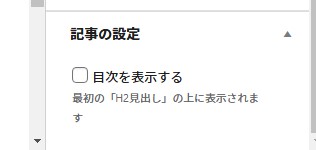
編集画面のサイドバーにチェックボックスを設置します。
こんな感じで設置されます。
<?php
if ( ! function_exists( 'my_add_meta_box' ) ) {
    function my_add_meta_box() {
        if(isset($_GET['post']) || isset($_POST['post_ID'])) {
            add_meta_box(
                'post_setting', // 識別子
                '記事の設定', // 表示される見出し
                'my_insert_custom_fields_side', // 以下で定義する関数
                'post', // 投稿タイプ、複数の場合は配列 array の形にする
                'side', // 表示する位置 'normal', 'side', 'advanced' (初期値は'advanced')
                'default', // 優先度 'high', 'core', 'default', 'low', 'default'
            );
        }
    }
    add_action( 'add_meta_boxes', 'my_add_meta_box' );
}

function my_insert_custom_fields_side()
{
    global $post;

    $cf_toc = 'toc_display';
    $cf_toc_check = "";
    if (get_post_meta($post->ID, $cf_toc, true) == "is_on") {
        $cf_toc_check = "checked";
    } ?>

<form method="post" action="admin.php?page=site_settings">
    <input id="<?php echo $cf_toc; ?>" type="checkbox" name="<?php echo $cf_toc; ?>" value="is_on" <?php echo $cf_toc_check; ?>>
    <label for="<?php echo $cf_toc; ?>">目次を表示する<br><small style="color:#666">最初の「H2見出し」の上に表示されます</small></label>
</form>
?>PHPで目次機能を自動生成
本文中の「H2」にアンカーリンク用のIDを付与して、最初に出てくる「H2」の上に目次を設置します。ただし、編集画面で「目次を表示する」にチェックが入っていなければ、目次は設置しないようにします。
<?php
/**
 * 目次自動生成
 *
 */
function generate_table_of_contents($headings) {
    $table_of_contents = '<div class="toc__container js_toc_accordion"><p class="toc__title is_open"><span>目次</span></p><ol class="toc__list">';
    $current_h2_item = '';
    $has_h3 = false;

    foreach ($headings as $heading) {
        if ($heading['tag'] == 'h2') {
            if ($current_h2_item !== '') {
                if ($has_h3) {
                    $table_of_contents .= '</ol>';
                }
                $table_of_contents .= '</li>';
            }
            $current_h2_item = '<li class="toc__item toc__item--h2"><a href="#' . $heading['id'] . '" class="toc__link">' . $heading['text'] . '</a>';
            $has_h3 = false;
            $table_of_contents .= $current_h2_item;
        } else {
            if (!$has_h3) {
                $table_of_contents .= '<ol class="toc__sublist">';
                $has_h3 = true;
            }
            $table_of_contents .= '<li class="toc__item toc__item--h3"><a href="#' . $heading['id'] . '" class="toc__link">' . $heading['text'] . '</a></li>';
        }
    }

    if ($current_h2_item !== '') {
        if ($has_h3) {
            $table_of_contents .= '</ol>';
        }
        $table_of_contents .= '</li>';
    }
    $table_of_contents .= '</ol></div>';

    return $table_of_contents;
}

function insert_table_of_contents($content) {
    if (is_single() && get_post_meta(get_the_ID(),'toc_display',true)) {
        //投稿ページ&「目次を表示する」にチェックが入っている場合

        // $heading_pattern = '/<(h2|h3)(.*?)>(.*?)<\/(h2|h3)>/is';//H3を目次に含める場合はこちらを有効に
        $heading_pattern = '/<(h2)(.*?)>(.*?)<\/(h2)>/is';
        $matches = array();
        $heading_count = preg_match_all($heading_pattern, $content, $matches, PREG_SET_ORDER);

        if ($heading_count >= 2) {
            $headings = array();

            $heading_counter = 0;
            foreach ($matches as $match) {
                $headings[] = array(
                    'tag' => $match[1],
                    'attributes' => $match[2],
                    'text' => $match[3],
                    'id' => 'heading-' . $heading_counter
                );
                $heading_counter++;
            }

            $content = preg_replace_callback($heading_pattern, function ($match) use ($headings) {
                static $index = 0;
                $id = $headings[$index]['id'];
                $index++;
                return sprintf('<%1$s%2$s><span id="%3$s">%4$s</span></%1$s>', $match[1], $match[2], $id, $match[3]);
            }, $content);

            $table_of_contents = generate_table_of_contents($headings);

            $first_h2_position = strpos($content, '<h2 class="wp-block-heading">');
            if ($first_h2_position !== false) {
                $content = substr_replace($content, $table_of_contents, $first_h2_position, 0);
            }
        }
    }

    return $content;
}
add_filter('the_content', 'insert_table_of_contents');
?>
目次クリック時のスムーススクロール
上部固定ヘッダーの高さを考慮したアンカーリンクへのスムーススクロールです。
  $('a[href^="#"]').click(function () {
    var href = $(this).attr("href");
    var target = $(href == "#" || href == "" ? "html" : href);
    var headerHight = $("#header").outerHeight();
    var position = target.offset().top - headerHight;
    $("html, body").animate({scrollTop: position}, 800, "swing");
    return false;
});JQuery.slim.jsなどでアニメーションが使えない場合はこちらがいいかも。
window.addEventListener("DOMContentLoaded", () => {
    const anchorLinks = document.querySelectorAll("a[href^='#']");
    const anchorLinksArr = Array.prototype.slice.call(anchorLinks);
    anchorLinksArr.forEach(link => {
        link.addEventListener("click", e => {
            e.preventDefault();
            const targetId = link.hash;
            const targetElement = document.querySelector(targetId);
            const targetOffsetTop = window.scrollY + targetElement.getBoundingClientRect().top - document.getElementById("header").offsetHeight;
            window.scrollTo({
                top: targetOffsetTop,
                behavior: "smooth"
            });
        });
    });
});目次枠の開閉
クリックで動的にクラスを付与し、
function toc_accordion() {
  if ($(".js_toc_accordion").length) {
    $(".js_toc_accordion").each(function(index) {
      let toc = $(this);
      let toc_open_class = "is_open";
      let toc_title = toc.find(".toc__title");
      let toc_list = toc.find(".toc__list");
      toc_title.addClass(toc_open_class);
      toc_list.addClass(toc_open_class);
      toc_title.on("click", function () {
        if ($(this).hasClass(toc_open_class)) {
          toc_list.removeClass(toc_open_class);
          toc_title.removeClass(toc_open_class);
        } else {
          toc_list.addClass(toc_open_class);
          toc_title.addClass(toc_open_class);
        }
      });
    });
  }
}CSSのみでスムーズな開閉を実装します。
.toc__container {
  background: #f5f5f5;
  border-radius: 8px;
  overflow: hidden;
  padding: 30px 45px;
  width: 100%;
}
.toc__title {
  cursor: pointer;
  font-size: 1.5rem;
  font-weight: 500;
  line-height: 1.4;
  margin: 0;
  padding-left: 15px;
  position: relative;
  transition: opacity 0.3s ease;
}
.toc__title::before {
  background: url(../img/arr_black_04.svg) center center/100% auto no-repeat;
  content: "";
  height: 11px;
  left: 0;
  position: absolute;
  top: 50%;
  -webkit-transform: translateY(-50%);
  transform: translateY(-50%);
  width: 5px;
}
.toc__title.is_open::before {
  -webkit-transform: rotate(90deg) translate(-80%, 0);
  transform: rotate(90deg) translate(-80%, 0);
}
.toc__list li {
  border-bottom: 1px solid #ddd;
}
.toc__list li:last-of-type {
  border-bottom: 0;
}
.toc__list li a {
  color: #707070;
  display: block;
  transition: opacity 0.6s ease, padding 0.6s ease;
}
.toc__list.is_open {
  margin-top: 12px;
}
.toc__list.is_open li a {
  display: block;
  font-size: 1.5rem;
  line-height: 1.4;
  padding: 8px 0;
  visibility: visible;
}
.toc__list:not(.is_open) li {
  border-bottom: 0;
}
.toc__list:not(.is_open) li a {
  font-size: 0;
  line-height: 0;
  opacity: 0;
  padding: 0;
  transition: opacity 0.8s ease, padding 0.8s ease;
  visibility: hidden;
}

@media screen and (max-width: 600px) {
  .toc__container {
    border-radius: 2.1333vw;
    margin: 8vw 0;
    padding: 4vw;
  }
  .toc__title {
    font-size: 3.7333vw;
    padding-left: 5.3333vw;
  }
  .toc__title::before {
    height: 2.9333vw;
    left: 1.3333vw;
    width: 1.3333vw;
  }
  .toc__list.is_open {
    margin-top: 3.2vw;
  }
  .toc__list.is_open li a {
    font-size: 3.7333vw;
    padding: 2.1333vw 0;
  }
}応用編(設置場所)
上記の設定で、目次は「最初に出てくるH2見出しの上」に自動表示されますが、工夫すれば複雑な条件の場所に表示させることもできます。
例えば、
- 本文の最初に「画像」を入れている場合、その「画像」の次に出てくる「文章(p)」のうえに設置する
- ただし、その「画像」のあと、「文章(p)」よりも先に「H2見出し」が出てくる場合は、「H2見出し」の上に設置する
- 本文の最初に出てくるのが「画像」でないならば、本文の先頭に設置
といった複雑な条件の場合は、下記部分を
function insert_table_of_contents($content) {
//*****省略*****


  //最初の「H2見出し」の上に表示する場合
  $first_h2_position = strpos($content, '<h2 class="wp-block-heading">');
  if ($first_h2_position !== false) {
      $content = substr_replace($content, $table_of_contents, $first_h2_position, 0);
  }

//*****省略*****
}こんなふうに書き換えます。
function insert_table_of_contents($content) {
//*****省略*****

  //「最初に画像がある場合」で設置場所を変更する
  $first_h2_position = strpos($content, '<h2 class="wp-block-heading');//最初に出てくる見出しの位置
  $first_img_position = strpos($content, '<figure class="wp-block-image');//最初に出てくる画像の位置
  $first_p_position = strpos($content, '<p');//最初に出てくる本文の位置
  $first_elm_pos = 0;//デフォルトで目次は本文の先頭に表示
  if($first_img_position !== false) {
    //本文中に画像がある場合
    if (($first_h2_position !== false) && $first_img_position < $first_h2_position || ($first_p_position !== false) && $first_img_position < $first_p_position ) {
    //本文中に最初に出てくるのが画像の場合、
      if (($first_h2_position !== false) && ($first_p_position !== false)) {
        //「H2」「p」どちらもある場合
        if ($first_h2_position < $first_p_position) {
          //「p」より先に「H2」がある場合は「H2」の上に
          $first_elm_pos = $first_h2_position;
        } else {
          //それ以外は最初に出てくる「p」の上に
          $first_elm_pos = $first_p_position;
        }
      } else if ($first_p_position === false) {
        //「p」が無い場合
        $first_elm_pos = $first_h2_position;
      }
    }
  }

//*****省略*****
}本文中に「画像」、「文章(p)」や「h2見出し」があるかどうかを調べる必要があるので、ちょっと複雑な条件分岐になります。